To set up your VelocityOne Flight with a PC, please do the following.
For the first use of the VelocityOne Flight, you'll need to assemble the unit, as shown below:
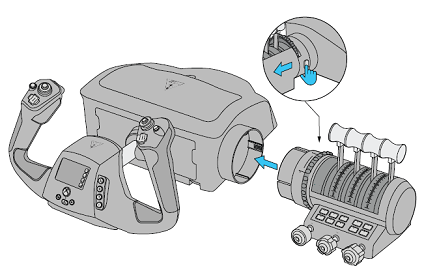
1. First, align the throttle quadrant to the yoke base, and slide it into place until the units click. To remove the throttle Quadrant, press the release button (located on the back of the throttle quadrant, next to the trim wheel).
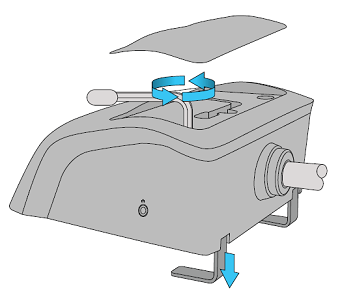
2. Then, lift the lid to reveal the clamp tool. Loosen the screws to extend the clamps. Place the yoke base onto your surface, and then tighten the screws to secure the controller.
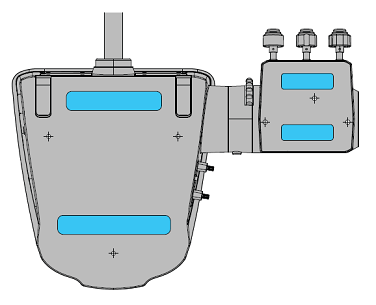
3. For scenarios where the desk clamp can't be used, simply peel and apply the micro suction tape to the highlighted areas in the image below, and then press the VelocityOne Flight firmly onto your surface.
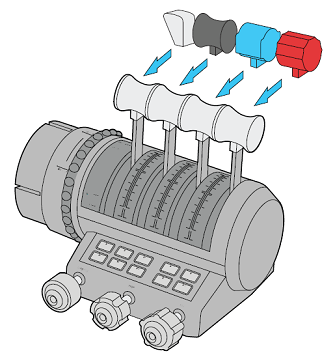
4. To change the quadrant handles, gently grasp and then pull on the throttle quadrant lever handles to remove them. Then push your preferred handles onto the levers until they click into place.
5. Connect the VelocityOne Flight's included cables to the unit itself, and then to respective ports on the console/throttle quadrant. Please note that these cables and jacks are color coded and are not interchangeable.

6. Ensure that the PC Mode is selected in the VelocityOne Flight menu.
7. (Optional) If you're using a headset with the VelocityOne, plug the headset into the 3.5mm headset jack on the unit. You should then be able to hear the audio through the headset.
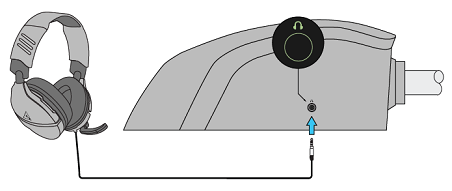
8. If you are using the VelocityOne Flight with a headset, you'll need to set the VelocityOne Flight as the default device within the PC settings. Go to the Control Panel >> Sound (or right-click the speaker icon on the right-side of the Taskbar and select Open Sound Settings) and set the VelocityOne Flight as the default Playback and Recording devices. If you would rather use a different headset or speaker system, instead select that specific headset or speaker system as the default Playback and Recording devices.
9. When in the PC Input Mode, the VelocityOne Flight will appear as two different devices in the Microsoft Flight Simulator menus -- one is for the Yoke Base (called YOKE), and the other for the Modular Throttle Quadrant (called QUAD). Make sure the profile selected is selected for both YOKE and QUAD. Please also make sure the profile selected is the correct profile you want to use -- and that the profiles in both the Flight Simulator menu and on the VelocityOne Flight itself match.
You should now be ready to use the headset and VelocityOne Flight unit.


