You can use the VelocityOne Hangar app to update the firmware for your unit and to customize your controls. This app is available here for PCs and Android devices (an iOS app is coming soon). For more information on using the VelocityOne Hangar app to customize the controls for your unit, please click here.
UPDATE FIRMWARE (PC)
For the best possible experience with your VelocityOne Flightdeck, we recommend always running the latest version of the firmware. You will need to update the firmware for both the Stick module and the Throttle module to update the entire unit.
- First, download the PC version of the VelocityOne Hangar app, which is available here for PCs and Android devices (an iOS app is coming soon).
- Plug both portions of the VelocityOne Flightdeck into separate USB ports on the computer, and then open the VelocityOne Flight Hangar app.
- When the app loads up, it will show you devices that are connected to your system. First we'll update the Stick -- click the FLIGHTDECK STICK icon in the left-side column to access the device.

- Using your mouse, click on the Firmware tab, which is the last entry in the list of tabs (just below the firmware version and "Connected" icon). The app will check if a firmware update is available. If a new version is available, the orange Update button will be selectable. To update the firmware for the Stick, click on that Update button.

- The system will reboot into update mode, and a progress bar will appear in the app. Once the update is complete the system will reboot into normal operating mode. Please be patient while this update process happens, and do not exit out of the VelocityOne Hangar window until the firmware update is complete.

- When the firmware update is complete, the app will return you to the Firmware tab, and the Installed version number will now match the Latest Release version number. Your Stick is now up to date!

- Now, we'll update the Throttle, as well. While in the Firmware tab for the Stick, navigate back to the left-hand column and click on the FLIGHTDECK THROTTLE icon to access the device
- Using your mouse, click on the Firmware tab, which is the last entry in the list of tabs (just below the firmware version and "Connected" icon).
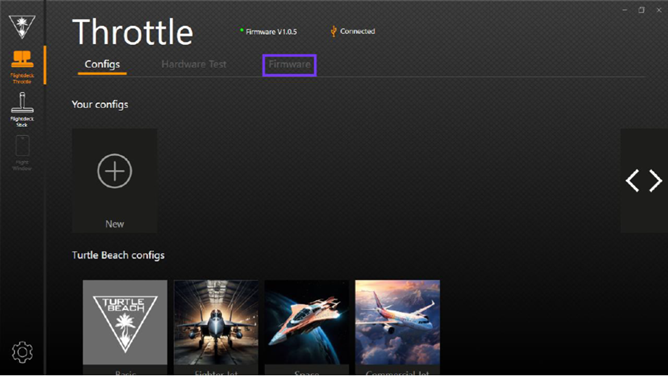
- The app will check if a firmware update is available. If a new version is available, the orange Update button will be selectable. To update the firmware for the Throttle, click on that Update button.
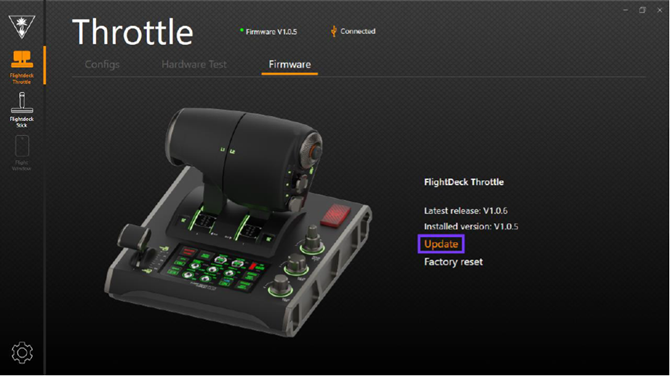
- The system will reboot into update mode, and a progress bar will appear in the app. Once the update is complete the system will reboot into normal operating mode. Please be patient while this update process happens, and do not exit out of the VelocityOne Hangar window until the firmware update is complete.
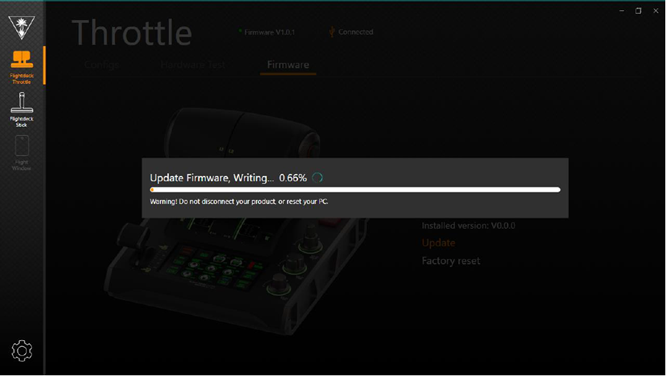
- When the firmware update is complete, the app will return you to the Firmware tab, and the Installed version number will now match the Latest Release version number. Your Throttle is now up to date!

- When both the Stick and the Throttle are up-to-date, your VelocityOne Flightdeck is fully updated, and you're now ready to fly!


