The Flight Management Display (FMD) displays real-time data and allows you to configure your Flightstick II on-the-fly, giving quick access to product settings and adjustment.
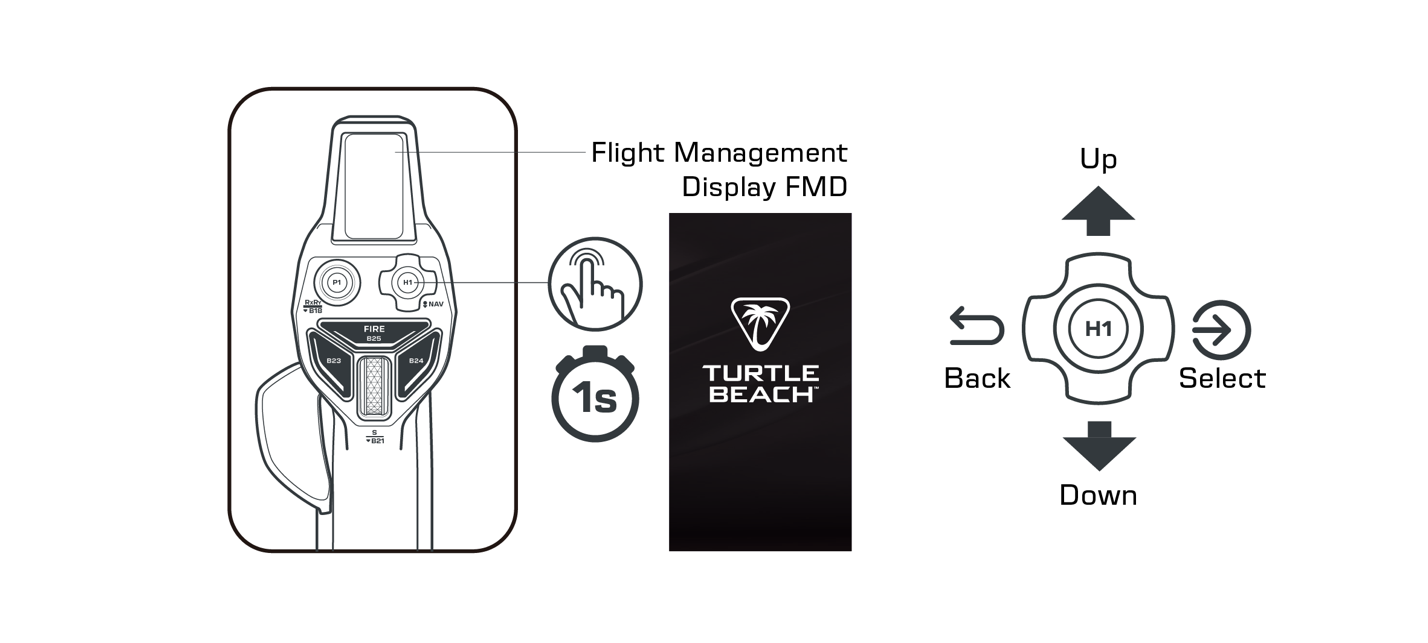
- To enter FMD navigation, press and hold the centre of H1 for 1 second.
- Use HAT 1 to navigate the menu (N/S/E/W = up/down/select/back)
- To exit the navigation mode, press back until you return to the data screen. Alternatively, the menu screen will time out and return to the data screen on its own.
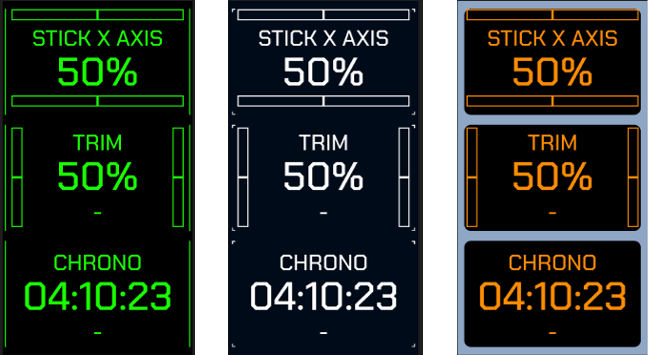
- Centre clicking H1 on the data screen will also cycle through data screen pages, if additional pages have been configured in the Hangar app.
Features of the Flight Management Display (FMD)
- Data Screens:
Display real-time data on the FMD, including axis position, Chronometer, and, in supported PC games, live telemetry data. Configure display themes and screen content through the Hangar app on PC or Xbox.
- Chronometer:
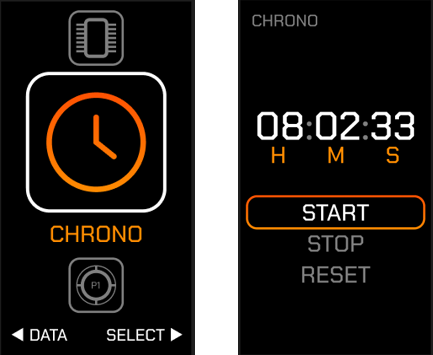
Use the Chronometer to time flight waypoints. Start and stop the timer through the menu, then view it on the Data Screens.
- P1 Response:
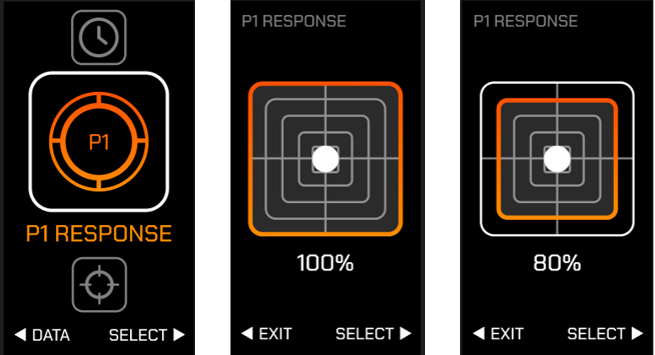
Adjusts the POV1 response for finer control by mapping physical POV movement to a smaller digital output range, enabling more precise inputs.
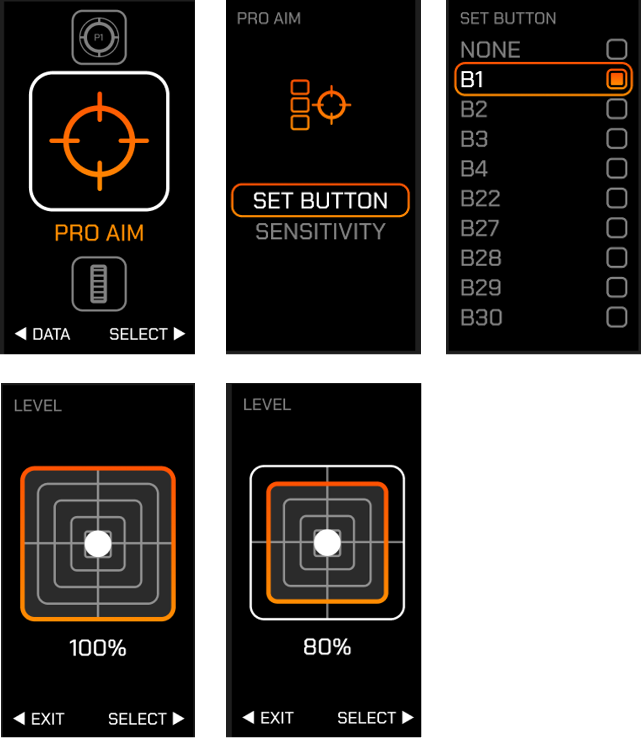
- Pro Aim:
The Pro Aim feature allows you to temporarily adjust the sensitivity of the main stick axes. This is useful for making critical in-flight adjustments or honing your aim on an enemy fighter. Hold the assigned control during stick movement to activate. Any additional functions mapped to that control will remain active.
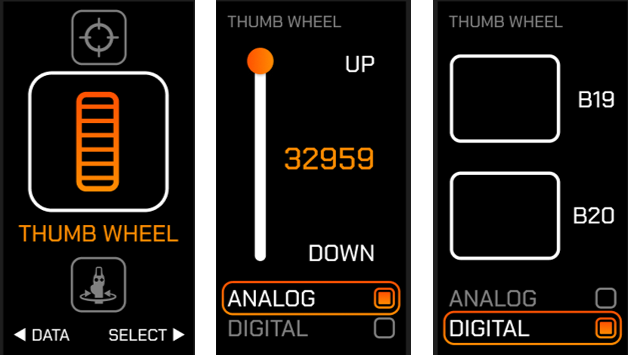
- Thumb Wheel: The thumb wheel can operate as either an analogue axis or a digital input. Select your preferred mode and test the response.
- Analogue Axis
Provides precise, proportional control, ideal for aircraft that use wheel-based trim controls. - Digital Buttons
Outputs button pulses when the wheel is rotated up or down. Ideal for aircraft that use button-based trim controls.
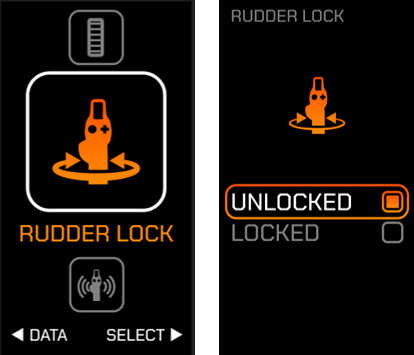
- Rudder Lock:
The stick can be twisted as an additional axis, typically used for rudder control. In addition to a physical lock that restricts twist movement, the output can be turned off digitally. This can be useful when using dedicated rudder pedals.
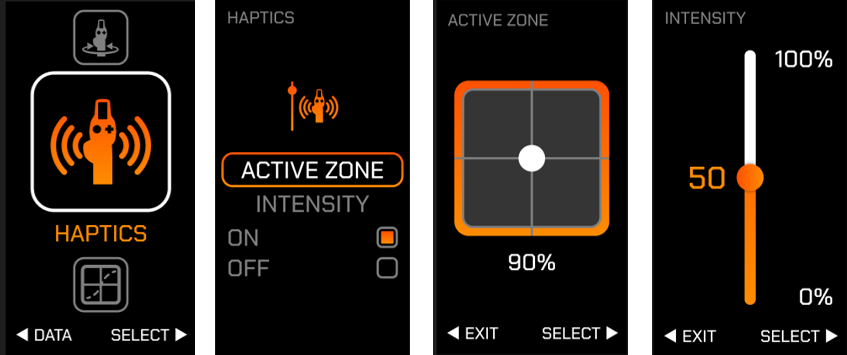
- Haptics:
An integrated haptic motor in the stick grip provides vibration feedback. Configure the active zone to receive tactile warnings when approaching the limits of stick travel.
On PC, haptic feedback can be linked to supported game titles.
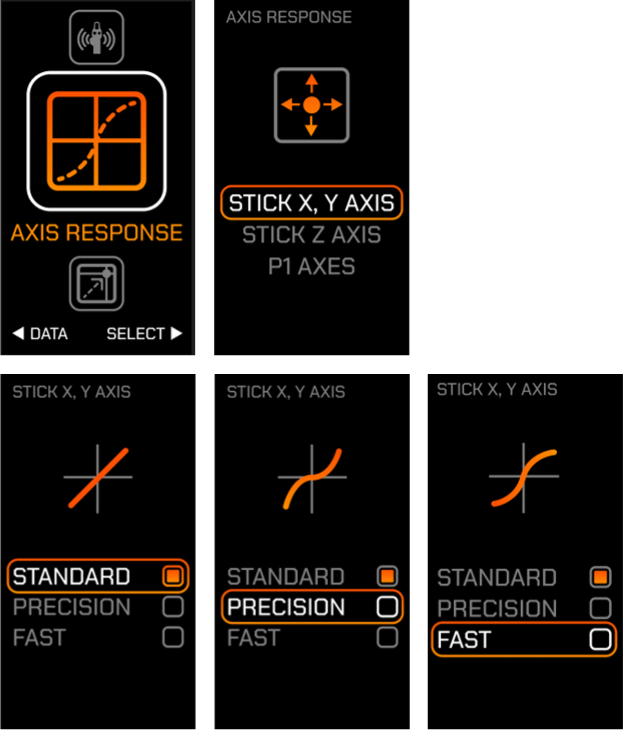
- Axis Response:
Tailor axis response to your preferred control style.
- STANDARD - Linear 1:1 control response.
- PRECISION - provides finer control around centre, making delicate adjustments easier during landing and formation flying.
- FAST - increases response for quicker, more aggressive inputs, ideal for arcade-style gameplay
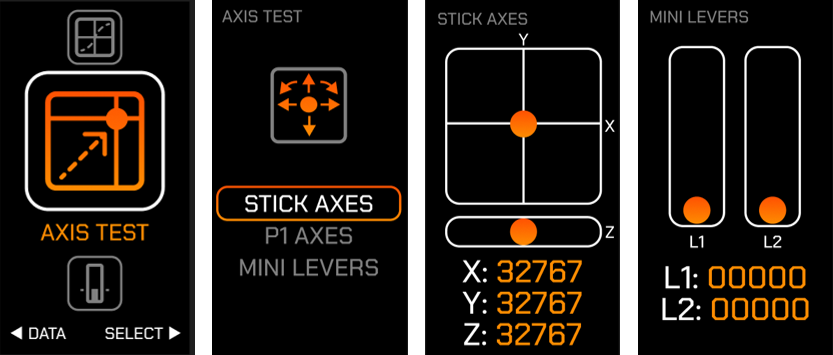
- Axis Test:
View the real-time output of each axis to confirm calibration and control response.
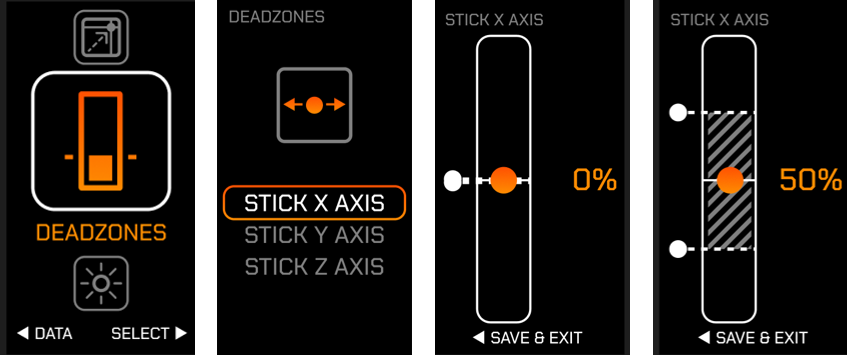
- Deadzones:
Configure deadzones on key axes for greater control precision and reduced unwanted movement.
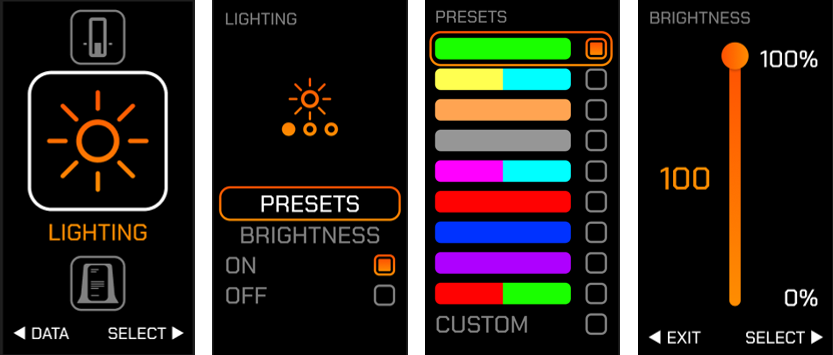
- Lighting:
Tailor the look of your device with customizable lighting. Choose from a selection of presets or create custom profiles in the Hangar app to match your style.
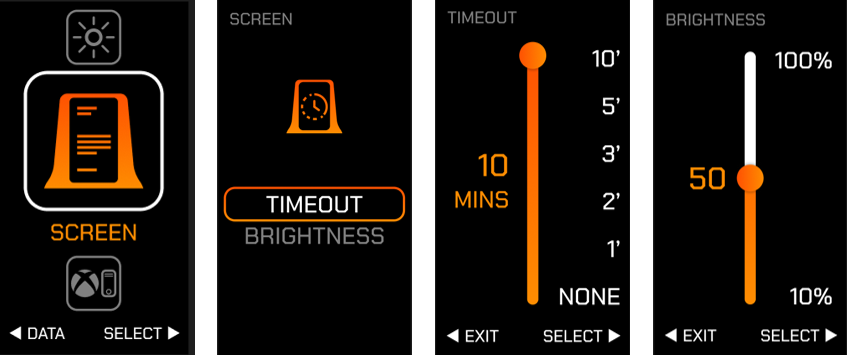
- Screen:
Adjust brightness and timeout settings for the Flight Management display.
- Input Mode:
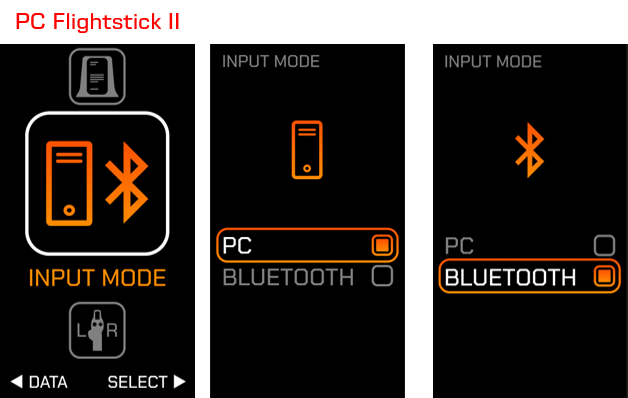
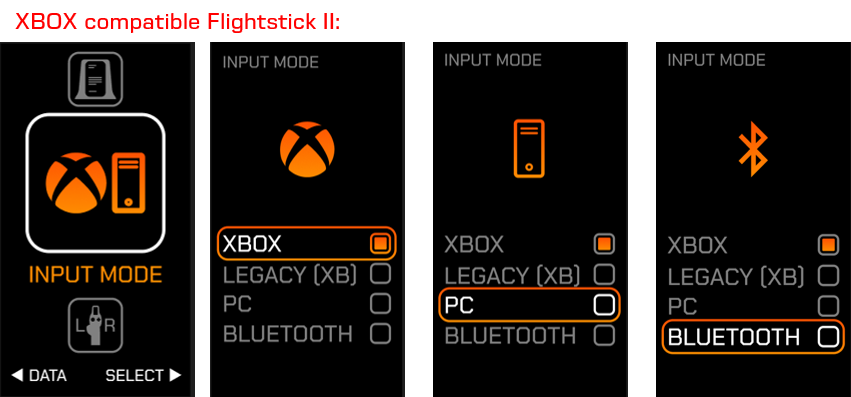
Set the input mode of your device. Available modes vary by model.
- PC Flightstick II:
- PC – select this mode for use on Windows PCs
- BLUETOOTH – Connect via Bluetooth for use with compatible Android devices and Smart TVs. A wired USB connection is still required for power.
-
- XBOX compatible Flightstick II:
- XBOX – standard mode for XBOX use
- LEGACY (XB) – Compatibility mode for selected older XBOX titles. Some features and functionality may be limited.
- PC – select this mode for use on Windows PCs
- BLUETOOTH – Connect via Bluetooth for use with compatible Android devices and Smart TVs. A wired USB connection is still required for power.
- Orientation:
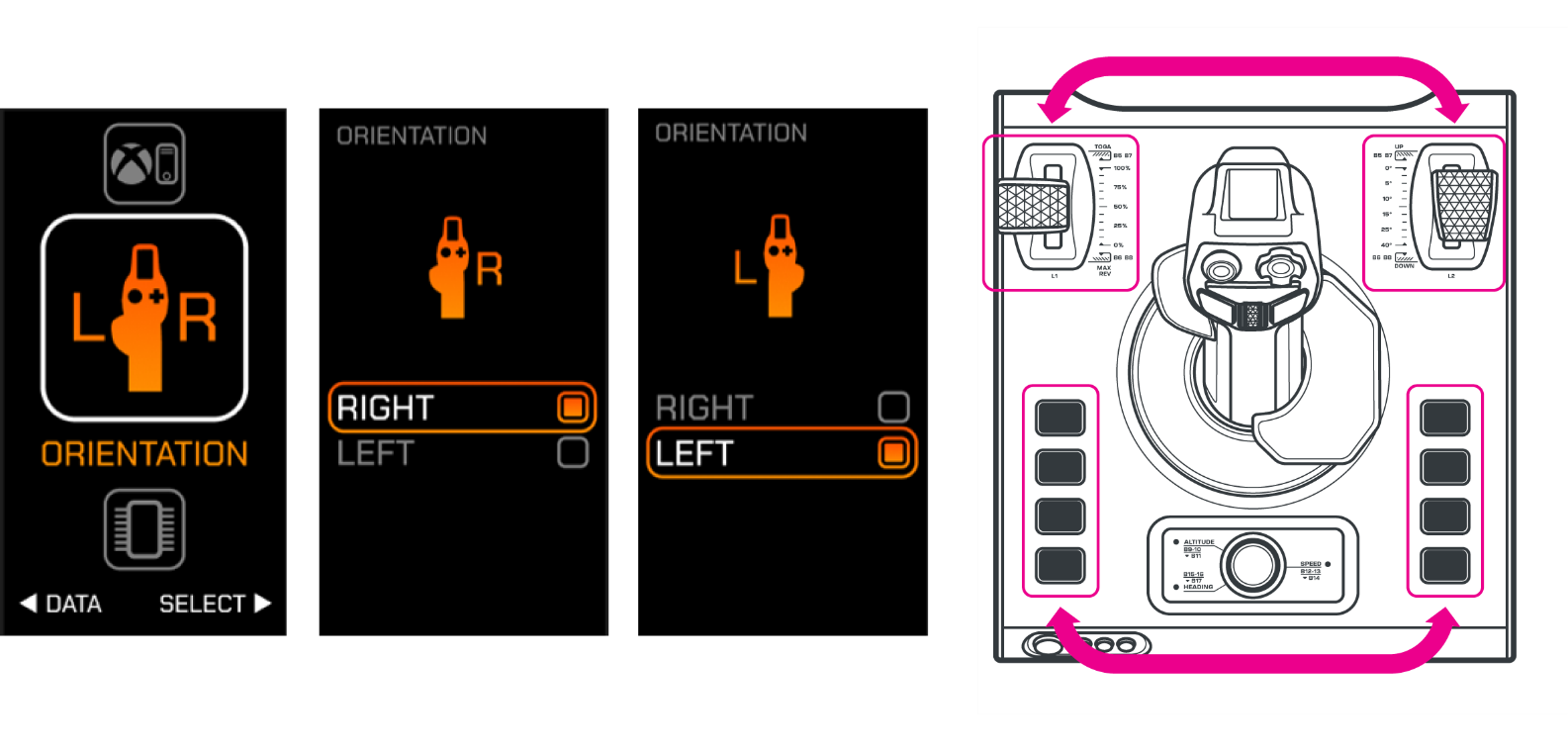
In addition to the physically adjustable palm and thumb rests, the Flightstick II can be put into right or left-handed modes digitally.
By default, the device is in right-handed operation. Switching orientation remaps the base controls, relocating B1-B4 and the primary throttle axis to the opposite side for easy access in left-handed operation.
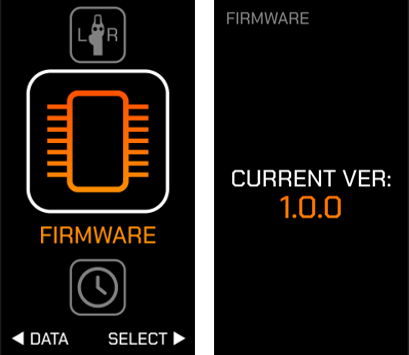
- Firmware:
Check the firmware version currently installed on your device.
Return to article overview
If you can't find an answer, feel free to reach out to support using our contact form.


